 by
by Find Your WiFi Password Without Resetting Router (Easy Methods 2026)
Forgetting your WiFi password can be frustrating—especially when you need to connect a new phone, laptop, smart TV, or gaming console. The good news? In most cases, you don’t need to reset your router to recover your wireless password.
Resetting your router should always be the last option because it deletes your custom network name (SSID), WiFi password, parental controls, port forwarding rules, and other personalized settings.
In this complete 2026 step-by-step guide, you’ll learn the easiest and safest ways to find your WiFi password without performing a factory reset.
Why You Should Avoid Resetting Your Router
Before jumping into solutions, let’s understand why resetting isn’t ideal.
When you reset your router:
-
All custom WiFi names and passwords are erased
-
Every connected device is disconnected
-
Port forwarding and gaming configurations are removed
-
Parental controls are disabled
-
ISP settings may need reconfiguration
Instead of creating extra work, try the methods below first.
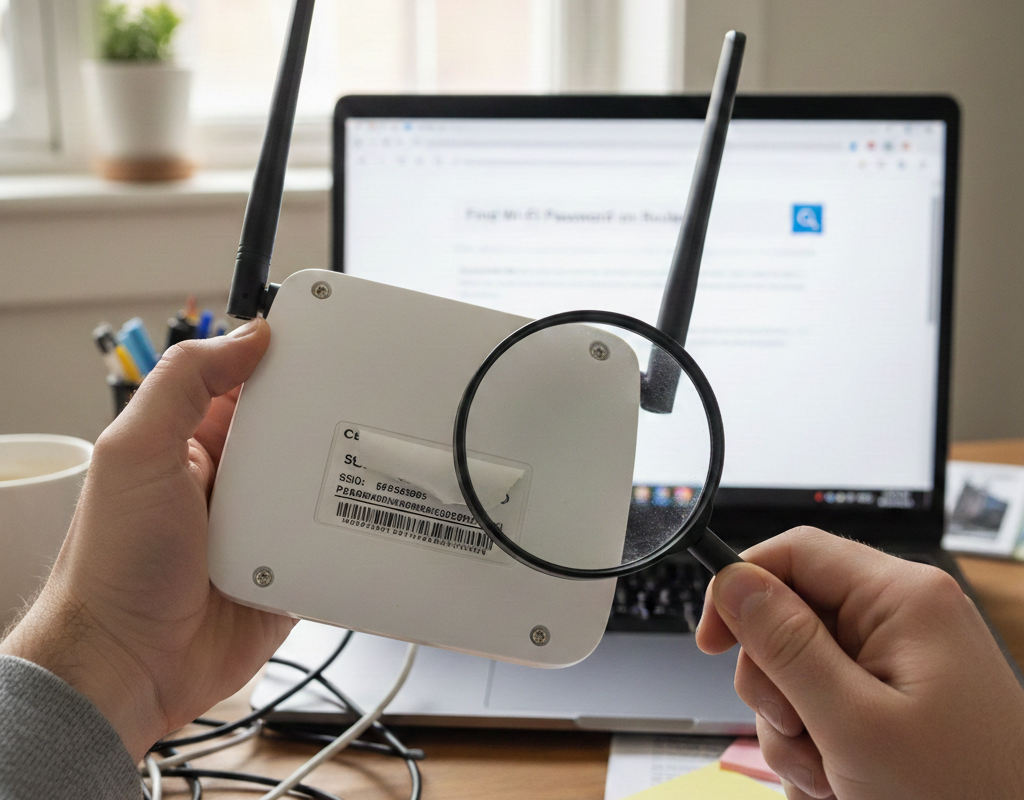
Method 1: Check the Router Label (Quickest Fix)
Many routers still have the default WiFi password printed on a sticker at the back or bottom.
Look for labels such as:
-
SSID (WiFi Name)
-
Wireless Key
-
WPA Key
-
WiFi Password
This works if the password was never changed after installation.
Common router brands that include default credentials on the label:
-
TP-Link
-
Netgear
-
D-Link
-
Linksys
If the password was customized, move to the next method.
Method 2: Find WiFi Password on Windows (Without Router Login)
If your Windows PC is already connected to the WiFi network, you can view the saved password in just a few steps.
Steps for Windows 10 & 11
-
Open Control Panel
-
Click Network and Internet
-
Select Network and Sharing Center
-
Click your connected WiFi name
-
Select Wireless Properties
-
Go to the Security tab
-
Check Show characters
Your WiFi password will appear instantly.
Advanced Method (Command Prompt)
-
Open Command Prompt as Administrator
-
Type:
-
Find your WiFi name
-
Run:
-
Look for Key Content
This reveals the saved password.
✔ Works only if the PC previously connected to the network.
Method 3: Find WiFi Password on macOS
If you’re using a Mac that’s already connected to WiFi, retrieving the password is simple.
Steps:
-
Open Keychain Access
-
Search for your WiFi network name
-
Double-click it
-
Check Show password
-
Enter your Mac admin password
The WiFi password will be displayed.
macOS securely stores all saved wireless credentials, making this one of the easiest recovery methods.
Method 4: Log Into Router Admin Panel (Most Reliable Method)
This is the most effective way to find your WiFi password without resetting.
Step 1: Find Your Router IP Address
Common router IP addresses:
-
192.168.0.1
-
192.168.1.1
-
192.168.1.254
On Windows:
-
Open Command Prompt
-
Type:
ipconfig -
Look for Default Gateway
On Mac:
-
System Settings → Network → WiFi → Details
-
Look for Router address
Step 2: Access the Router Login Page
-
Open a browser
-
Enter the IP address in the address bar
-
Press Enter
You will see the router login screen.
Step 3: Enter Admin Credentials
Default login details are often:
-
Username: admin
-
Password: admin / password / blank
If you changed the admin login before, use the updated credentials.
If you don’t know them, check:
-
Router label
-
ISP paperwork
-
Saved browser passwords
Step 4: Locate Wireless Settings
Once logged in:
-
Go to Wireless
-
Click Wireless Security
-
Look for WPA2/WPA3 Passphrase
You can usually click “Show Password” to reveal it.
Where to Find Password in Popular Routers
TP-Link
Wireless → Wireless Security → Password
Netgear
Wireless Settings → Security Options → Passphrase
D-Link
Setup → Wireless Settings → Pre-Shared Key
Linksys
Wireless → Wireless Security → Passphrase
Interface layouts differ slightly, but terminology is similar.
Method 5: Use Router Mobile Apps (2026 Easiest Way)
Modern routers offer companion apps that let you manage settings directly from your smartphone.
Examples include:
-
TP-Link Tether App
-
Netgear Nighthawk App
-
Google Home App (for Nest WiFi & Google WiFi)
Steps:
-
Open the router app
-
Log in
-
Go to WiFi settings
-
View or share password
This method avoids logging into web panels entirely.
Method 6: Find WiFi Password on Android (2026 Updated)
If your Android phone is already connected:
Android 10 and Newer:
-
Go to Settings
-
Tap Network & Internet
-
Select Internet
-
Tap your connected WiFi
-
Choose Share
-
Authenticate (PIN or fingerprint)
You’ll see:
-
A QR code
-
The plain text WiFi password
This is one of the fastest modern solutions.
Method 7: Find WiFi Password on iPhone (iOS 16 & Newer)
If your iPhone is connected:
-
Open Settings
-
Tap Wi-Fi
-
Tap the (i) icon next to your network
-
Tap Password
-
Authenticate with Face ID or Touch ID
The password will be revealed instantly.
What If You Don’t Know the Router Admin Login?
If you can’t access the admin panel:
Try:
-
Default credentials from sticker
-
ISP documentation
-
Asking the person who set it up
-
Browser password manager
If none work and no device is connected, resetting may be necessary.
How to Create a Strong WiFi Password (2026 Security Tips)
If you recover your password and realize it’s weak, update it immediately.
Strong Password Tips:
-
Use at least 12–16 characters
-
Include uppercase & lowercase letters
-
Add numbers and symbols
-
Avoid names or birthdays
-
Don’t use simple patterns like 12345678
Strong Example:
F9#kT7!pLmQ2z
WPA2 vs WPA3 – Which Should You Use?
Modern routers support WPA3 encryption.
-
WPA2 – Still widely used
-
WPA3 – More secure (recommended in 2026)
If your router supports WPA3, enable it for better protection against password cracking.
When Resetting the Router Is the Only Option
You may need to reset if:
-
Admin login was changed and forgotten
-
No device is connected
-
Router settings are inaccessible
-
Router firmware is corrupted
Click Here: Find Wi-Fi Password on Router
How to Reset:
-
Locate reset button
-
Hold for 10–15 seconds
-
Wait for reboot
-
Reconfigure network
Again, use this only as a last resort.
Troubleshooting Tips
If you cannot access the router:
-
Make sure you’re connected to the correct network
-
Use Ethernet cable if WiFi isn’t working
-
Disable VPN temporarily
-
Clear browser cache
-
Try another browser
Frequently Asked Questions (FAQ)
Can I see WiFi password without admin access?
Yes, if a connected device has saved credentials.
Can I recover WiFi password remotely?
Only if remote router management is enabled.
Is it illegal to view WiFi password?
It is legal only for networks you own or have permission to access.
Final Thoughts
Forgetting your WiFi password in 2026 isn’t a disaster. In most cases, you can retrieve it quickly without resetting your router.
The easiest methods are:
-
Viewing saved password on a connected Windows or Mac computer
-
Checking Android or iPhone WiFi settings
-
Logging into the router admin panel
-
Using router mobile apps
Resetting should always be your last option because it removes all custom configurations.