 by
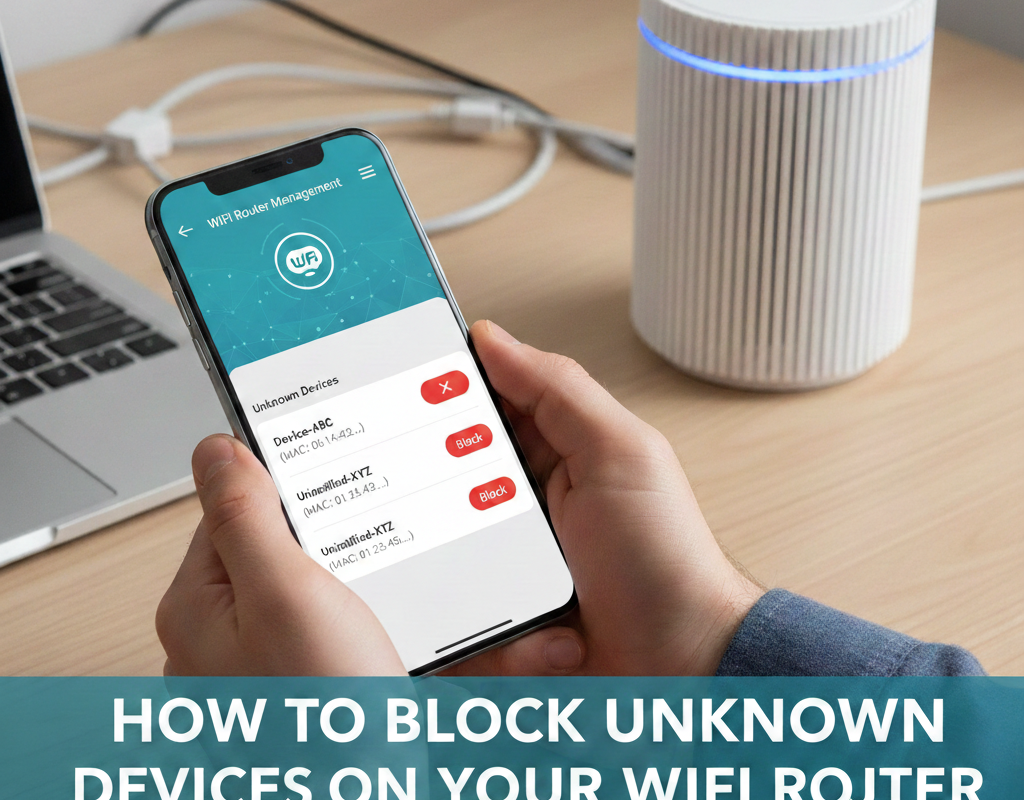
by How to Block Unknown Devices on Your WiFi Router in 2026 (Complete Guide)
In 2026, your WiFi network connects far more than laptops and smartphones. Smart TVs, gaming consoles, doorbells, security cameras, thermostats, voice assistants, and even kitchen appliances depend on your router. With so many connected devices, it’s easy for unknown or unauthorized devices to slip onto your network.
Blocking unknown devices is no longer optional—it’s essential for security, privacy, and speed.
This comprehensive 2026 guide will walk you through:
-
How to identify unknown devices
-
How to block them on modern routers
-
How to use advanced security tools like WPA3 and device isolation
-
How to prevent unauthorized access permanently
Let’s dive in.
Why You Must Block Unknown Devices in 2026
Unauthorized devices can:
-
Slow down your internet speed
-
Spy on your network traffic
-
Steal personal data
-
Access smart home devices
-
Spread malware across connected systems
Modern cyberattacks are smarter. Tools powered by AI can scan for weak WiFi networks and exploit outdated security settings. Even neighbors guessing weak passwords can gain access.
Blocking unknown devices protects:
-
Personal data
-
Banking activity
-
Smart home systems
-
Work-from-home setups
-
Children’s online activity
Step 1: Identify Unknown Devices on Your Network
Before blocking anything, you must confirm which devices are unfamiliar.
How to View Connected Devices
Most modern routers (2026 models) allow monitoring through:
-
Router admin web interface
-
Mobile companion apps
-
Smart home dashboards
Popular router brands include:
-
TP-Link
-
Netgear
-
ASUS
-
Linksys
-
Eero
-
Google Nest
How to Access Router Settings
-
Connect to your WiFi.
-
Open a browser.
-
Enter your router’s IP address (commonly 192.168.1.1 or 192.168.0.1).
-
Log in with admin credentials.
In 2026, many routers also offer cloud dashboards via mobile apps, making it easier to see connected devices in real time.
What to Look For
Each connected device shows:
-
Device name
-
MAC address
-
IP address
-
Device type (phone, laptop, IoT, etc.)
-
Band (2.4GHz / 5GHz / 6GHz WiFi 6E or WiFi 7)
If you see:
-
Unknown brand names
-
Generic device names (e.g., “ESP_XXXX”)
-
Devices active at unusual hours
-
Multiple unfamiliar MAC addresses
It’s time to investigate.
Step 2: Confirm It’s Not One of Your Own Devices
Before blocking, double-check.
Commonly forgotten devices:
-
Smart TVs
-
Streaming devices
-
Printers
-
Security cameras
-
Gaming consoles
-
Smart bulbs
-
Guest devices
-
Work laptops
Tip: Temporarily turn off suspected devices and refresh the router device list. If the device disappears, you’ve identified it.
Step 3: Block the Unknown Device (Basic Method)
Most 2026 routers allow blocking in two main ways:
Option 1: Block by MAC Address
-
Go to “Connected Devices”
-
Select the unknown device
-
Choose “Block,” “Blacklist,” or “Deny Access”
-
Save settings
The router will prevent that MAC address from reconnecting.
Important:
Some advanced attackers can spoof MAC addresses. That’s why MAC blocking alone is not enough in 2026.
Option 2: Remove and Change WiFi Password (Recommended)
This is the most effective immediate solution.
Steps:
-
Go to Wireless Settings
-
Change WiFi password
-
Enable WPA3 encryption
-
Save and reboot router
This disconnects all devices.
Then:
-
Reconnect only trusted devices manually.
Step 4: Enable WPA3 Security (Critical in 2026)
If your router still uses WPA2, upgrade immediately.
WPA3 offers:
-
Stronger encryption
-
Protection against brute-force attacks
-
Forward secrecy
-
Improved IoT security
Almost all routers released after 2023 support WPA3.
If your router does not support WPA3, consider upgrading.
Step 5: Disable WPS
WPS (WiFi Protected Setup) is convenient but risky.
Hackers can exploit WPS PIN vulnerabilities.
To disable:
-
Go to Wireless Settings
-
Locate WPS
-
Turn it off
-
Save settings
This removes a common attack vector.
Step 6: Use Access Control or Device Whitelisting
Modern routers allow:
-
Blacklisting (block specific devices)
-
Whitelisting (allow only approved devices)
In 2026, whitelisting is far safer.
How to Enable Whitelisting
-
Navigate to Access Control
-
Switch mode to “Allow only listed devices”
-
Add trusted MAC addresses
-
Save settings
Only approved devices can connect.
This is ideal for:
-
Home offices
-
Small businesses
-
Secure smart homes
Step 7: Create a Separate Guest Network
If guests frequently visit, create a guest WiFi network.
Most routers from TP-Link and Netgear offer:
-
Guest SSID
-
Bandwidth limits
-
Network isolation
Guest networks prevent visitors from accessing:
-
Main devices
-
Network storage
-
Smart home controls
Step 8: Use Network Segmentation (Advanced 2026 Method)
In 2026, smart homes have 20+ connected devices.
Instead of putting everything on one network:
-
Main Network: Personal devices
-
IoT Network: Smart home devices
-
Guest Network: Visitors
Advanced routers and mesh systems support:
-
VLAN tagging
-
IoT isolation
-
Device grouping
This prevents a compromised smart bulb from exposing your laptop.
Step 9: Enable Automatic Security Updates
Routers now receive firmware updates automatically.
Ensure:
-
Auto-update is enabled
-
Firmware is current
-
Security patches are installed
Outdated firmware is one of the biggest causes of unauthorized access.
Step 10: Turn On Intrusion Detection & AI Monitoring
High-end 2026 routers include:
-
AI threat detection
-
Intrusion prevention systems (IPS)
-
Real-time attack alerts
These systems:
-
Detect brute-force login attempts
-
Block suspicious traffic
-
Notify you of new device connections
Check if your router app supports:
-
Push alerts for new devices
-
Suspicious activity monitoring
-
Remote blocking
Step 11: Hide Your SSID (Optional)
Disabling SSID broadcast hides your network name.
Pros:
-
Reduces visibility to casual users
Cons:
-
Does not stop determined attackers
-
Devices must be manually configured
This is a minor extra layer—not a primary defense.
Step 12: Reduce Signal Leakage
If you live in an apartment:
-
Move router away from windows
-
Lower transmission power slightly
-
Use directional antennas
This reduces the range outsiders can detect.
Step 13: Monitor Regularly
Blocking once is not enough.
Best practices:
-
Check connected devices weekly
-
Enable new-device notifications
-
Review logs monthly
-
Remove inactive devices
In 2026, smart routers log:
-
Connection times
-
Data usage
-
Suspicious activity
When You Should Replace Your Router
Replace your router if:
-
No WPA3 support
-
No firmware updates
-
More than 5 years old
-
No guest network
-
No device monitoring
Modern WiFi 6E and WiFi 7 routers provide:
-
Better security
-
Improved encryption
-
Faster speeds
-
More device capacity
Common Mistakes to Avoid
-
Using simple passwords
-
Reusing WiFi passwords elsewhere
-
Ignoring firmware updates
-
Leaving default admin credentials
-
Keeping WPS enabled
-
Not changing ISP default settings
Strong WiFi Password Guidelines (2026 Standard)
Use:
-
16–20 characters
-
Uppercase + lowercase
-
Numbers
-
Special symbols
Avoid:
-
Names
-
Birthdays
-
Simple phrases
Example format (do not copy):F!ber7Wave#2026Secure
Click Here to : Block Unknown Devices
Extra Protection: Use a Firewall & DNS Filtering
Many routers allow:
-
Custom DNS
-
Malware blocking
-
Content filtering
Consider enabling:
-
Built-in firewall
-
DNS security services
-
Parental controls
This adds another security layer.
Final Security Checklist
Before you finish, confirm:
✅ Unknown device blocked
✅ WiFi password changed
✅ WPA3 enabled
✅ WPS disabled
✅ Guest network created
✅ Firmware updated
✅ Admin password changed
✅ Intrusion alerts enabled