 by
by Introduction
Forgetting your WiFi password is a common problem. Whether you are connecting a new phone, sharing internet access with guests, or troubleshooting network issues, knowing how to check your WiFi router password can save time and frustration. Fortunately, there are several easy ways to find your WiFi password depending on your device and router model.
In this detailed guide, you’ll learn how to check your WiFi router password on Windows, Mac, Android, iPhone, and directly from the router settings. This article is designed for beginners and advanced users alike, with step-by-step instructions and helpful tips to keep your network secure.
What Is a WiFi Router Password?
A WiFi router password (also called a WiFi network key or wireless password) is the security key required to connect devices to your wireless network. It prevents unauthorized users from accessing your internet connection and personal data.
There are usually two types of passwords related to a router:
-
WiFi Password – Used to connect devices to the wireless network
-
Router Admin Password – Used to log in to the router’s settings panel
This guide focuses mainly on finding the WiFi password, but we’ll also touch on router admin credentials when necessary.
Method 1: Check WiFi Password on a Windows Computer
If your Windows PC is already connected to the WiFi network, you can easily view the saved password.
Steps for Windows 10 and Windows 11:
-
Click Start and open Control Panel
-
Select Network and Internet
-
Click Network and Sharing Center
-
Click on your WiFi network name
-
Select Wireless Properties
-
Go to the Security tab
-
Check the box “Show characters”
You will now see your WiFi password in plain text.
Best For:
-
Users who previously connected to the WiFi
-
Quick password recovery without router access
Method 2: Check WiFi Password on Mac (macOS)
Mac users can retrieve WiFi passwords using Keychain Access, a built-in password manager.
Steps:
-
Open Spotlight Search (Command + Space)
-
Type Keychain Access and open it
-
In the search bar, type your WiFi network name
-
Double-click the network name
-
Check “Show password”
-
Enter your Mac administrator password
The WiFi password will appear.
Best For:
-
macOS users who previously connected to the network
-
Secure password viewing
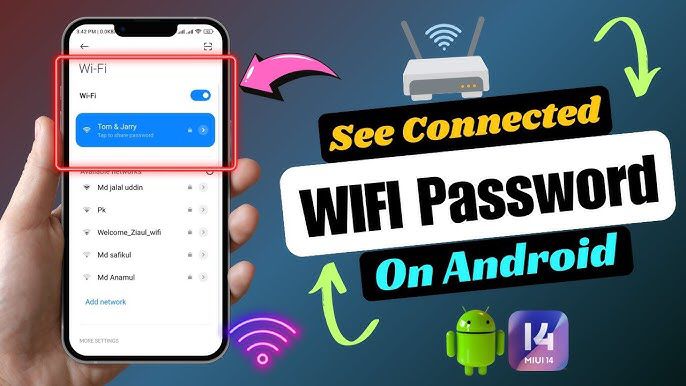
Method 3: Check WiFi Password on Android Devices
On newer Android versions, you can view or share WiFi passwords without third-party apps.
Steps (Android 10 and above):
-
Open Settings
-
Tap Network & Internet or Connections
-
Select WiFi
-
Tap your connected network
-
Choose Share
-
Verify using PIN, fingerprint, or face unlock
-
A QR code and plain-text password will appear
Best For:
-
Android users running modern OS versions
-
Quickly sharing WiFi with others
Method 4: Check WiFi Password on iPhone (iOS)
Apple allows WiFi password viewing starting with iOS 16.
Steps:
-
Open Settings
-
Tap WiFi
-
Tap the “i” icon next to the connected network
-
Tap Password
-
Authenticate using Face ID, Touch ID, or passcode
The WiFi password will be revealed.
Best For:
-
iPhone users on updated iOS
-
Secure and easy access
Method 5: Check WiFi Password Using Router Settings (Universal Method)
If no device is connected or you want to confirm the original password, accessing the router’s admin panel is the best option.
What You Need:
-
Router IP address (usually 192.168.1.1 or 192.168.0.1)
-
Router admin username and password
Steps:
-
Connect to the router via WiFi or Ethernet
-
Open a web browser
-
Enter the router IP address in the address bar
-
Log in to the router admin panel
-
Navigate to Wireless Settings or WiFi Settings
-
Look for WPA/WPA2 Password or Pre-Shared Key
You can view or change the WiFi password from here.
Common Router Brands:
-
TP-Link
-
Netgear
-
D-Link
-
ASUS
-
Linksys
Best For:
-
Viewing or changing WiFi password
-
Managing network security
Method 6: Check the Router Label (Default Password)
If the router has never been reconfigured, the WiFi password may still be printed on the router.
Where to Look:
-
Bottom or back of the router
-
Sticker labeled SSID, WiFi Key, or Password
Important Note:
If the password was changed before, the label password will no longer work.
What to Do If You Forgot Router Admin Password
If you cannot access the router settings:
Option 1: Try Default Login
Search for your router brand’s default credentials.
Option 2: Reset the Router
-
Press and hold the Reset button for 10–15 seconds
-
Router will return to factory settings
-
Use default WiFi name and password
⚠️ Warning: Resetting removes all custom settings.
How to Change Your WiFi Password (Recommended)
Changing your WiFi password improves security and prevents unauthorized access.
Steps:
-
Log in to router admin panel
-
Open Wireless Settings
-
Enter a new strong password
-
Save and reboot router
Wifi Password Finder: Click Here
Tips for a Strong WiFi Password:
-
At least 12 characters
-
Mix of letters, numbers, and symbols
-
Avoid names or common words
Common WiFi Password Problems and Solutions
WiFi Password Not Working
-
Check for capitalization
-
Restart router
-
Forget and reconnect network
Devices Keep Disconnecting
-
Update router firmware
-
Change WiFi channel
-
Improve router placement
Security Tips for Your WiFi Network
-
Use WPA2 or WPA3 encryption
-
Change password every 6–12 months
-
Disable WPS if not needed
-
Hide SSID for extra privacy (optional)
Frequently Asked Questions (FAQs)
Can I see WiFi password without admin access?
Yes, if your device is already connected.
Is it safe to share WiFi password?
Only with trusted users. Consider a guest network.
Can I check WiFi password online?
No. Passwords are stored locally on devices or routers.
Conclusion
Knowing how to check your WiFi router password is an essential skill in today’s connected world. Whether you’re using Windows, Mac, Android, iPhone, or accessing your router directly, there is always a way to retrieve or reset your WiFi credentials.
For better security, regularly update your WiFi password and ensure your router settings are properly configured. With the steps outlined in this guide, you’ll never be locked out of your WiFi network again.